How do you choose a barcode scanner for a shop or warehouse?
On this page
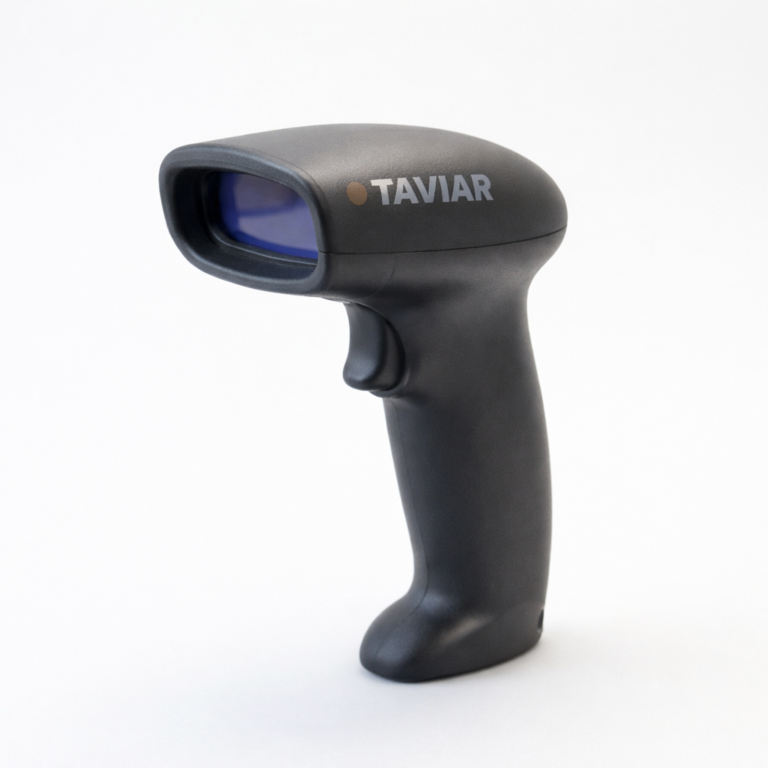
A barcode scanner must suit the code and workstation. Collect actual labels and codes and describe how staff approach products before selecting a model. Assess the scanner for everyday work, not model name alone.
What type of code needs to be read?
Distinguish between a linear barcode and a two-dimensional code such as QR. Not every scanner reads both. For example, Zebra classifies LI4278 as a 1D scanner, whereas the DS2200 series supports 1D and 2D. Check the code types listed for the exact model and test samples at their actual size and quality.
Wired or wireless?
Describe whether all items come to the till or staff must reach shelves and crates. Wireless selection requires checking charging, working distance and reception conditions on site. For a wired scanner, check cable length and the connection required by the computer. Do not assume a cable or cradle is included in every SKU.
How do I check the software connection?
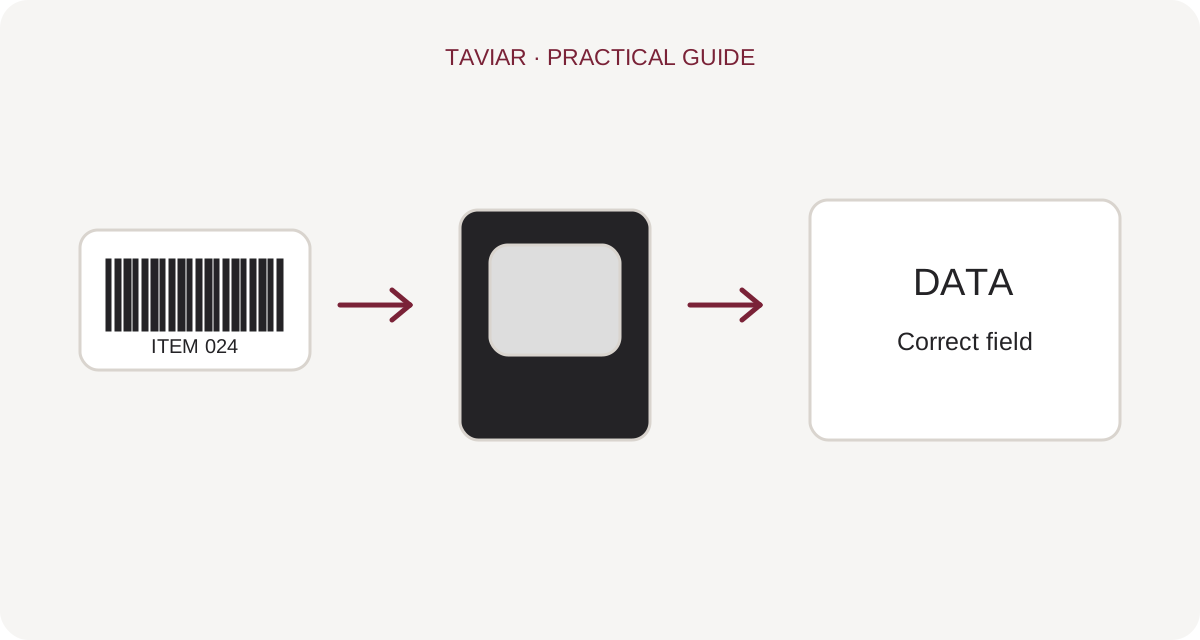
Note the POS or inventory software name, operating system and physical connection. Check which field receives the data, whether Enter is required after scanning and how special characters are handled. Successful computer connectivity alone does not guarantee a correctly configured software workflow.
What should I check before deciding?
Try scanning the product in its final packaging, including small labels or codes on curved surfaces. Check grip, comfort and stand requirements. Define who charges the scanner, where it is kept and how faults or missed scans are identified.
Continue choosing equipment
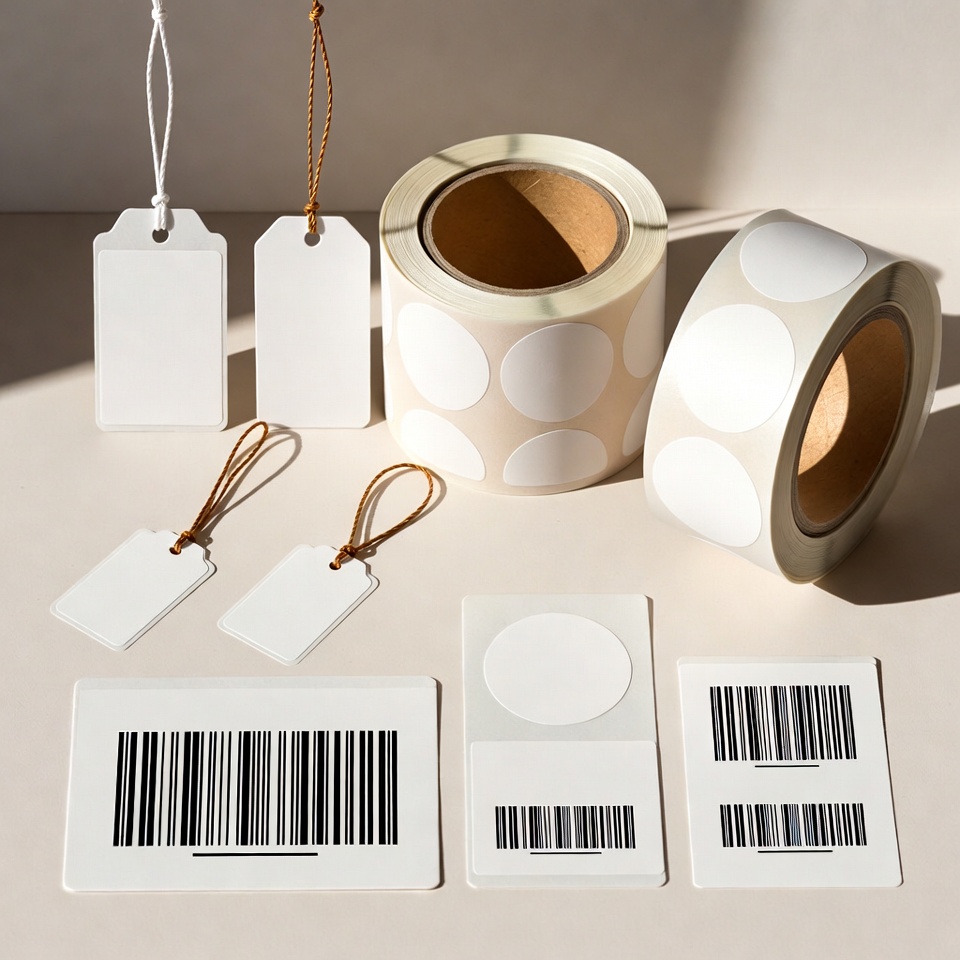
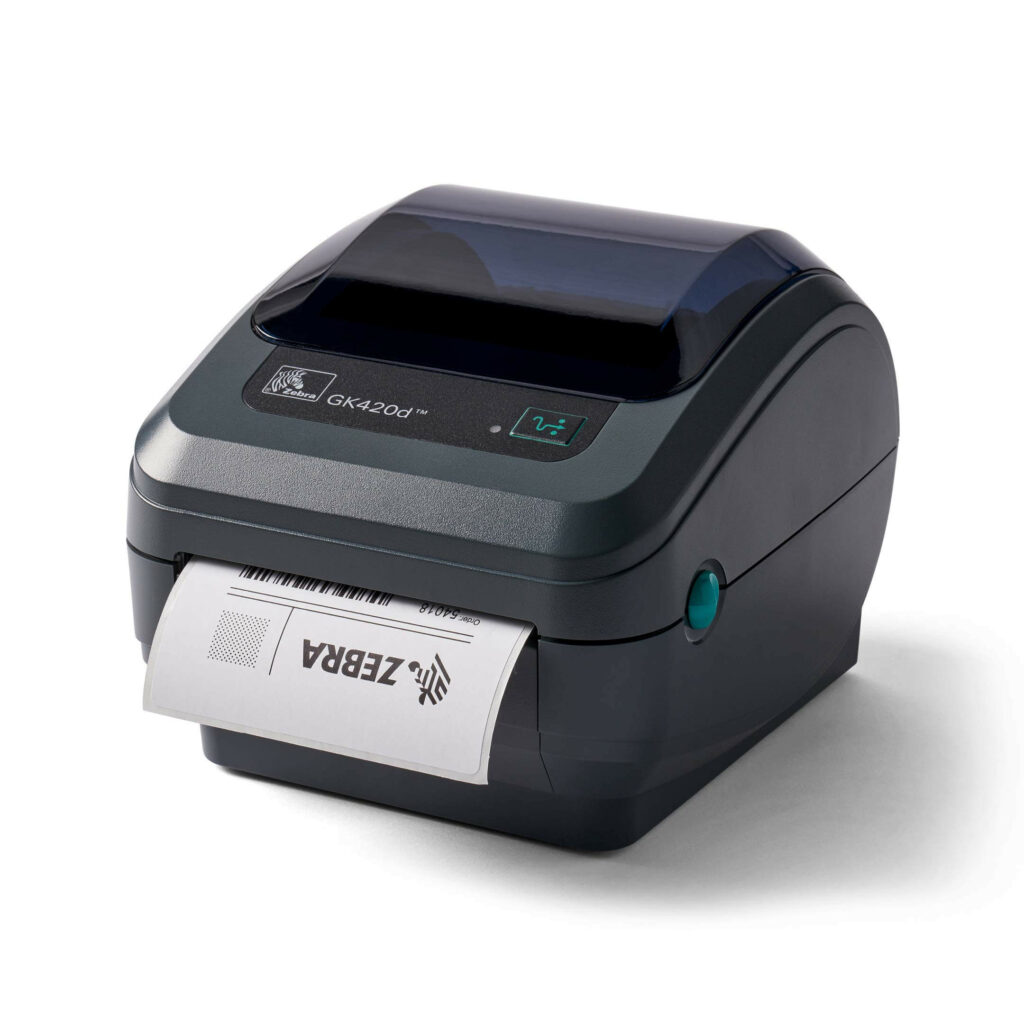
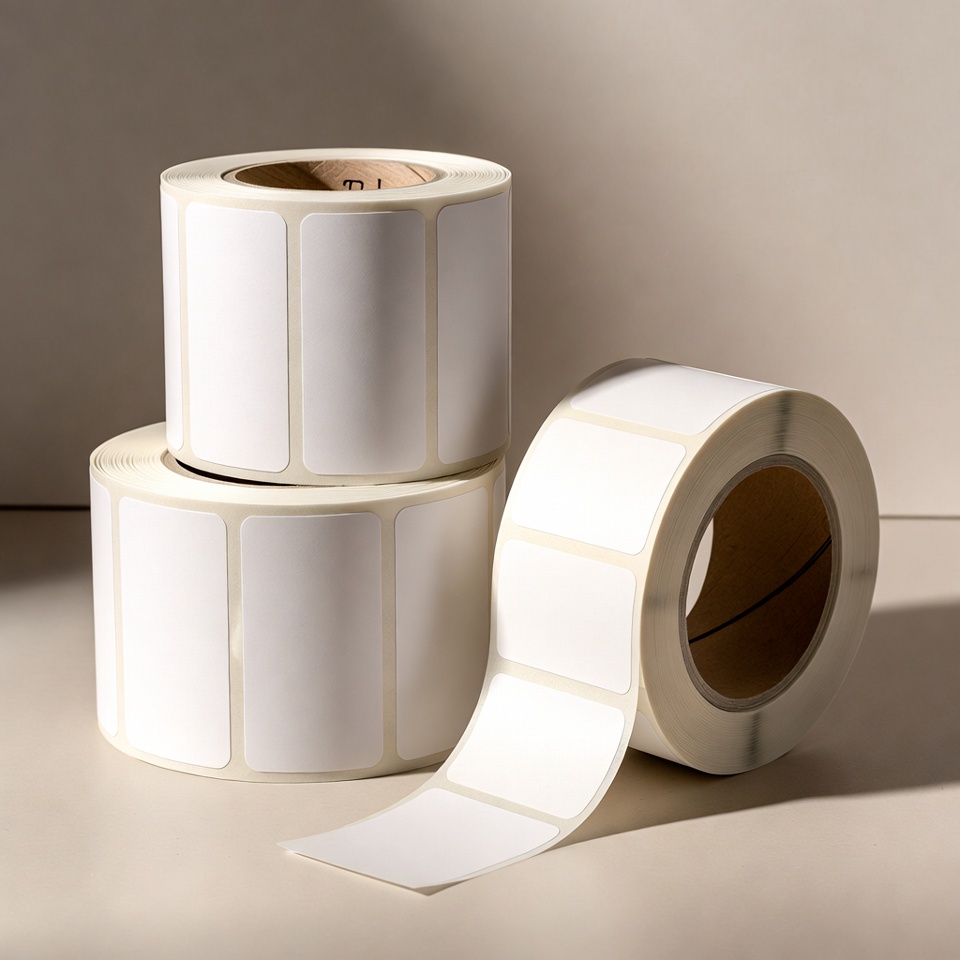
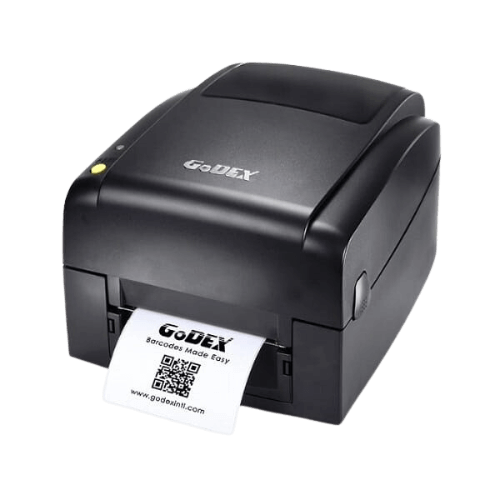
Compare Barcode scanners in the catalogue and also check Barcode labels on which you print. For shipping work, read the The guide to a shipping label station. Source for Zebra model classification: Official manufacturer scanner catalogue.
A quick workstation test
Scan a real sample rather than just a clean barcode image on screen. Try a product with a small label, curved surface or glossy packaging if these form part of the work. Consider the worker's posture and where the product is placed; an action repeated dozens of times needs to be comfortable.
The code scans but the system cannot find a product?
Separate reading the symbol from recognising its data in software. Check the exact field value, any added prefix or suffix characters and whether the value exists in the system. Change scanner settings according to the model manual. Save existing settings information before changes.
Barcode reader for retail and warehousing: compatibility checks before purchase
Wired scanner, two-dimensional codes and screen reading
Start with your code samples: a linear product barcode, two-dimensional document code or phone-screen code. Reading one type does not guarantee support for all. For QR or screen reading, check the exact specifications and test an actual work sample.
To continue checking, see Barcode scanners in the catalogue.
Wireless barcode scanner or a fixed connection?
At a fixed workstation, check the scanner's computer connection and how it enters data into software. Where movement between shelves or large items is required, assess a wireless model, charging method and behaviour on disconnection. Do not rely on a general reception range without testing the actual environment.
To continue checking, see Barcode label planning.
A simple acceptance test at the business
Scan several different products and confirm that data reaches the correct field without missing characters or unintended movement between fields. Also check the action after scanning: whether Enter, Tab or processing in the till software is needed. If the label itself is damaged or too dense, replacing the scanner alone will not necessarily solve the problem.
To continue checking, see When a mobile computer is needed.