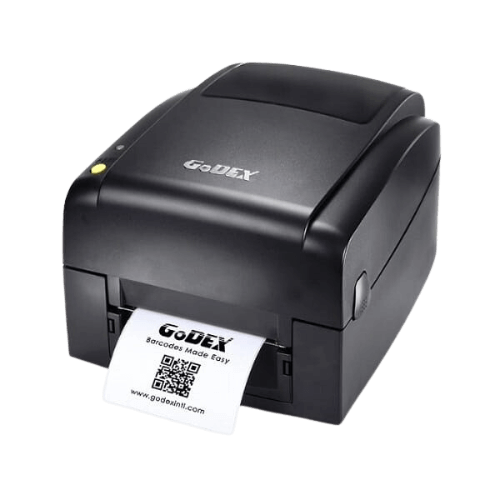
Identify the printer before downloading a driver
Check the device's model label and your computer's operating system. Also specify how the printer connects: USB, network or another connection. A driver for a similar model is no substitute for verification, and a software update is not the first step for every fault.
A driver and design software are two different things
The driver enables the computer to work with the printer; design software prepares the label and its information. If printing starts but dimensions or orientation are wrong, also check media and template settings. Download links lead to original sources; licensing and operating system support must be checked for the particular version.
Barcode printer and scanner driver: identify the model before downloading
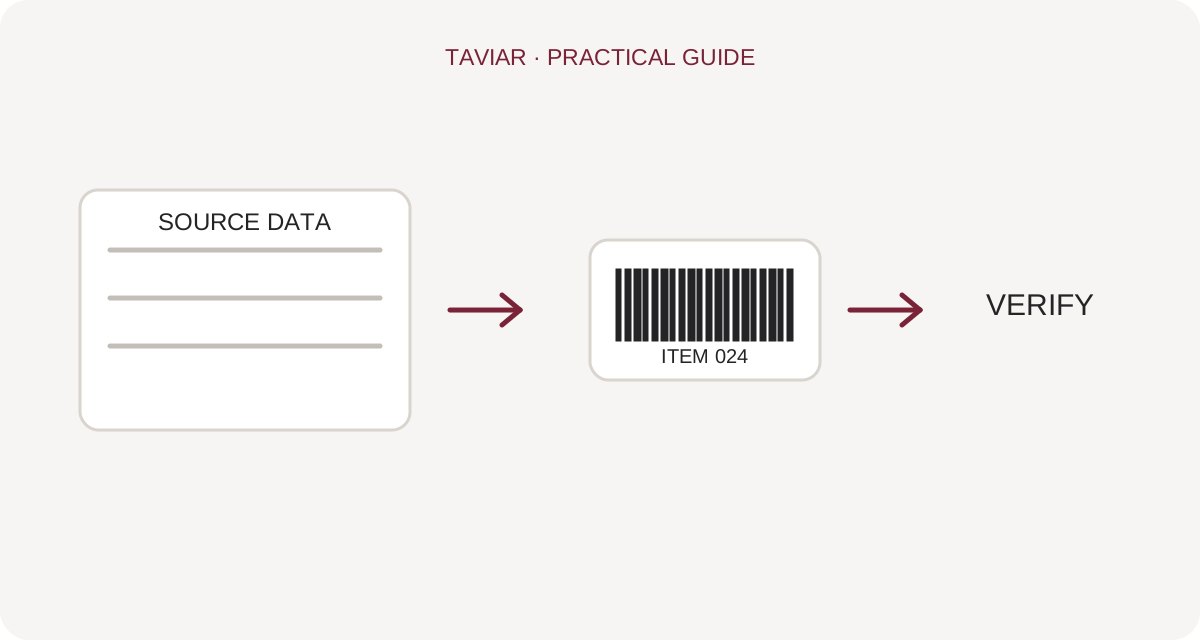
Manufacturer name is not enough
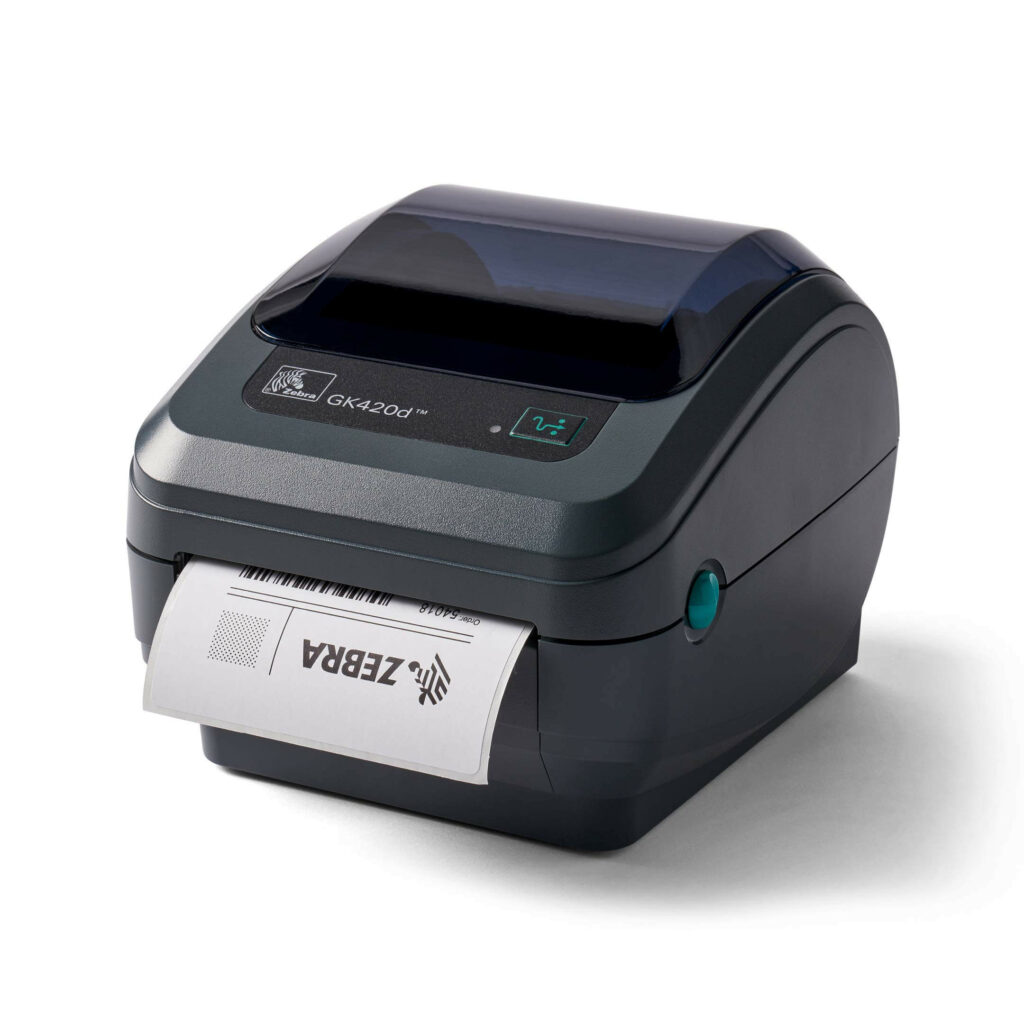
When downloading a driver for a GoDEX, Zebra, Argox or other printer, compare the complete model on the device label and the operating system. A model suffix or hardware version may change the required installation file. Visit the manufacturer's official support page and check the download details.
To continue checking, see Testing printing on Mac.
A driver, design software and a manual are different things
A driver connects the operating system to the printer; design software prepares the label. A user manual explains installation and operation of the model. When searching for a manual, driver or programming guide, check what your intended task requires rather than selecting the first file name that appears.
To continue checking, see Help identifying a model.
After installation
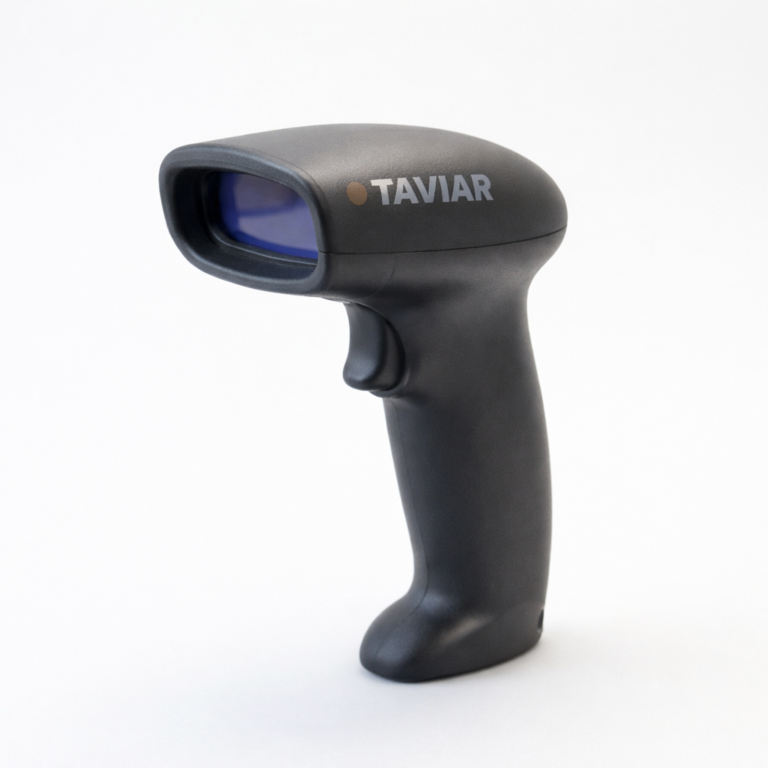
Print a test at actual size and check orientation and media. For a barcode scanner, ensure the data reaches the intended field. If your operating system is not explicitly supported or the model is not listed, contact us with the model and version before installing an alternative file.
To continue checking, see Matching a printer to the task.