Label printing on a Mac: what should you check before installation?
On this page
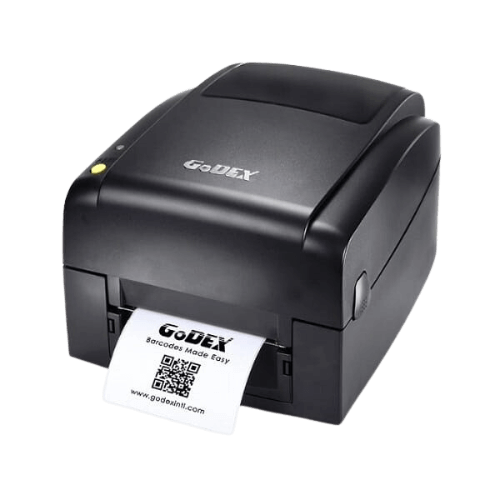
Using a label printer on Mac requires checking the exact model, operating system and printing software. Brand name alone does not confirm compatibility.
Identify the model and system version
Copy the model name from the manufacturer label and specify your computer's macOS version. If the printer has multiple connection versions, specify the configuration purchased too.
Download only from the official source
Start with the manufacturer support page and check for a driver matching your model and operating system version. TAVIAR's driver page links to support sources; driver availability varies and should be verified at the source before purchase.
Check the label software too
A driver is only part of the process. Ensure that the design software or system you print from works on Mac and can produce the required label through the chosen printing method.
Run a sample print and scan
After installation according to manufacturer instructions, check label size, orientation, margins and Hebrew if required. Print a sample and check the barcode before routine work.
Drivers and official support links
Tailor a business solution
Relevant products in the catalogue - Contact us with a sample, dimensions and model name for a compatibility check.
Guides to continue your selection
To complete details before ordering: Drivers by manufacturer andChoosing a printer.
Check the entire printing workflow on Mac
Start with the exact printer model, macOS version and label-generating software. A USB connection does not prove a suitable driver exists or all software features are supported. Seek manufacturer instructions for the model and system, not an installer from an unfamiliar download site.
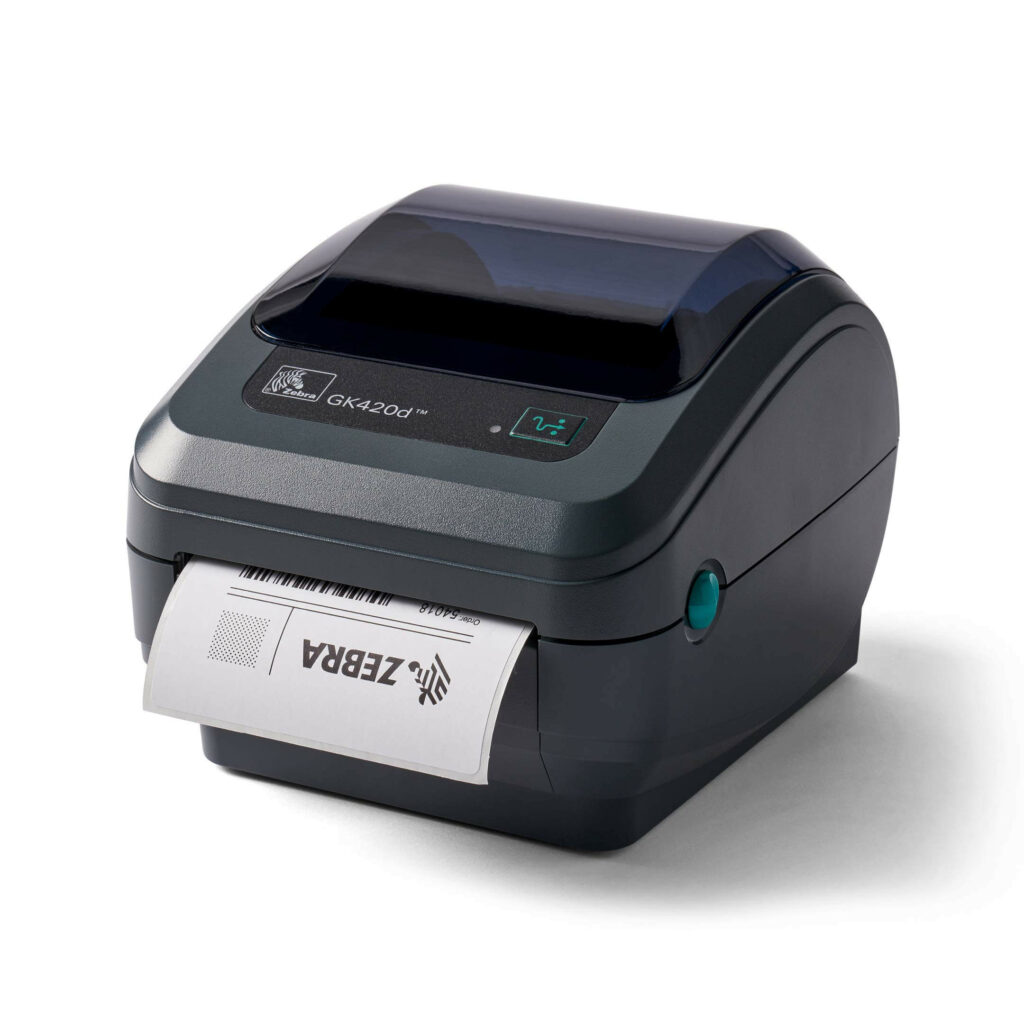
Zebra recommends CUPS for Mac computers in its guidance. Check the current instructions and model compatibility before installation. If your workflow uses dedicated software or a business system, check its Mac support separately.
For acceptance testing, print a label at actual size: check orientation, margins, Hebrew text and barcode readability. Then try several labels in sequence and resume work after closing the software. Keep the media settings and test results with the printer details.
A short preparation checklist before choosing
- Printer model and macOS version
- Software name and connection method
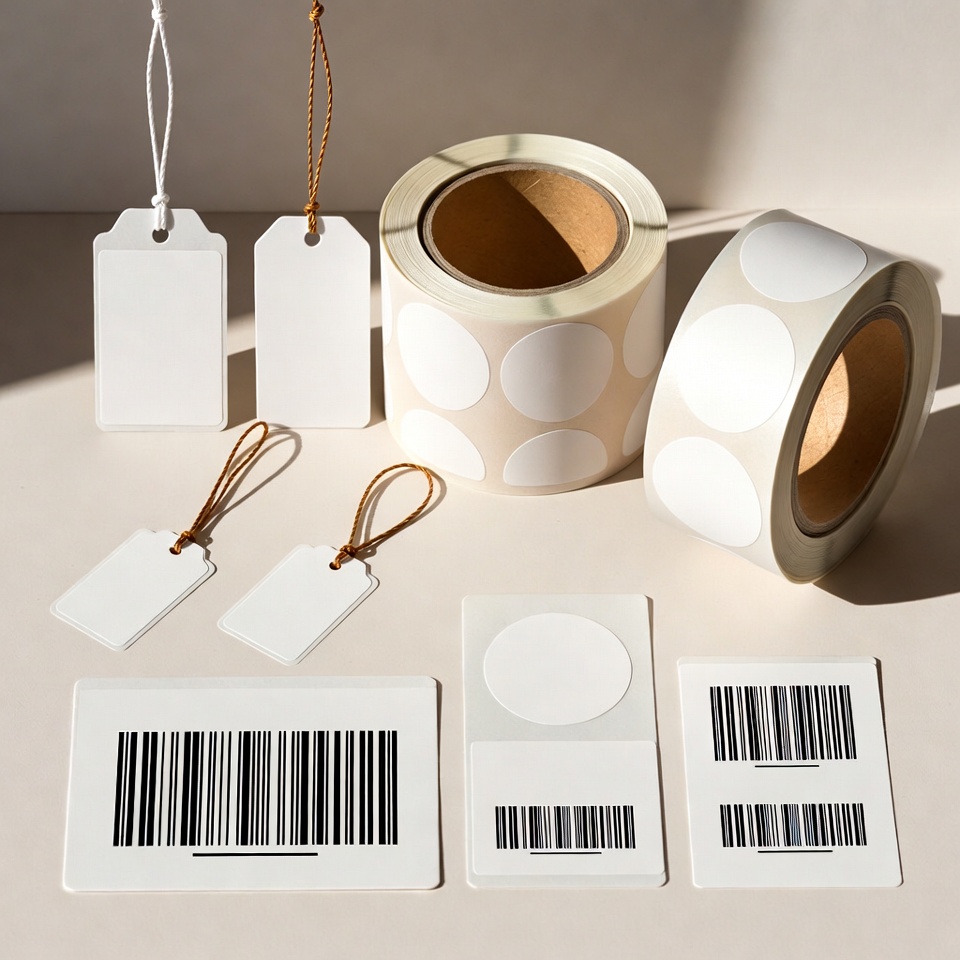
- Label size and printing method
- Test file with Hebrew and barcode
How do I check that the solution is suitable?
Prepare a representative work sample. Test it with your equipment and item, record approvals and outstanding questions, and keep the version and specifications for repeat orders. Compare alternatives under the same conditions, not using photographs or prices for different tasks.
More professional information: Zebra guidance for Mac. Availability and compatibility are checked according to the model and version in use.
Label printer for Mac: check the complete print workflow
Compatibility with the exact operating system
Before choosing a label printer for Mac, check printer model and macOS version against official support. A driver for a similar model or support for another system does not prove compatibility. Design software running on another computer does not establish that the same version is available for Mac.
To continue checking, see Official driver links.
PDF, design software or a business system?
Define where label printing starts: a prepared file, design software or a management system. Printing a PDF differs from editing a label with variable fields. Check the file at actual size without automatic fit-to-page scaling, ensuring Hebrew text and barcodes remain intact.
To continue checking, see Choosing a business printer.
Test before switching the entire business
Try several prints after disconnecting and reconnecting the printer and check dimensions are retained. Test network printing from the actual working computer. Record the driver version and successful settings so they can be restored after updates.
To continue checking, see Check compatibility before purchase.