

Printing labels from Priority: what should you check before connecting a printer?
On this page
Connecting a printer to a management system starts with workflow and data, not just a cable. Before buying equipment, show the same label sample to the system implementer and printer supplier.
Define where the information comes from
List the fields to appear on the label: SKU, name, price, batch or serial number. Specify who initiates printing, at which stage of work and whether content changes between items.
Check the existing printing method
Ask your system implementer how labels are produced: a file, report or connection to label software. Do not assume every printer model and software licence supports the same workflow.
Prepare a real test scenario
Request a sample print from a test environment using sample data. Check Hebrew, numbers, separators, dimensions and barcode scanning. Do not send the supplier personal or customer information unnecessary for testing.
Separate equipment from integration work
The quotation should list the printer, labels, ribbon if required, software licence and implementation work separately. Equipment alone does not guarantee the entire workflow will operate without configuration and testing.
Tailor a business solution
Relevant products in the catalogue - Contact us with a sample, dimensions and model name for a compatibility check.
Guides to continue your selection
To complete details before ordering: Choosing a printer andDrivers and support.

Define data before connecting a printer
Define which Priority document or process generates the label, who operates printing and which fields must reach it. Start with one label and one document rather than connecting every business workflow at once.
Priority documentation describes workflows where external design software such as BarTender or NiceLabel manages the label template and mapping. Licensing and connection methods depend on version and implementation. Do not assume this integration is included with every printer or software licence.
Test real scenarios: an item with a long description, a missing field, Hebrew, a print sequence and a reprint. Also define who is responsible for template changes and support. Before routine operation, document field mapping and the approved result.
A short preparation checklist before choosing
- Priority version and source document
- Fields and sample file
- Design software and existing licence
- Printer, connection and media
How do I check that the solution is suitable?
Prepare a representative work sample. Test it with your equipment and item, record approvals and outstanding questions, and keep the version and specifications for repeat orders. Compare alternatives under the same conditions, not using photographs or prices for different tasks.
More professional information: Priority documentation for label production. Availability and compatibility are checked according to the model and version in use.
Printing labels from Priority: defining information, files and the printing station
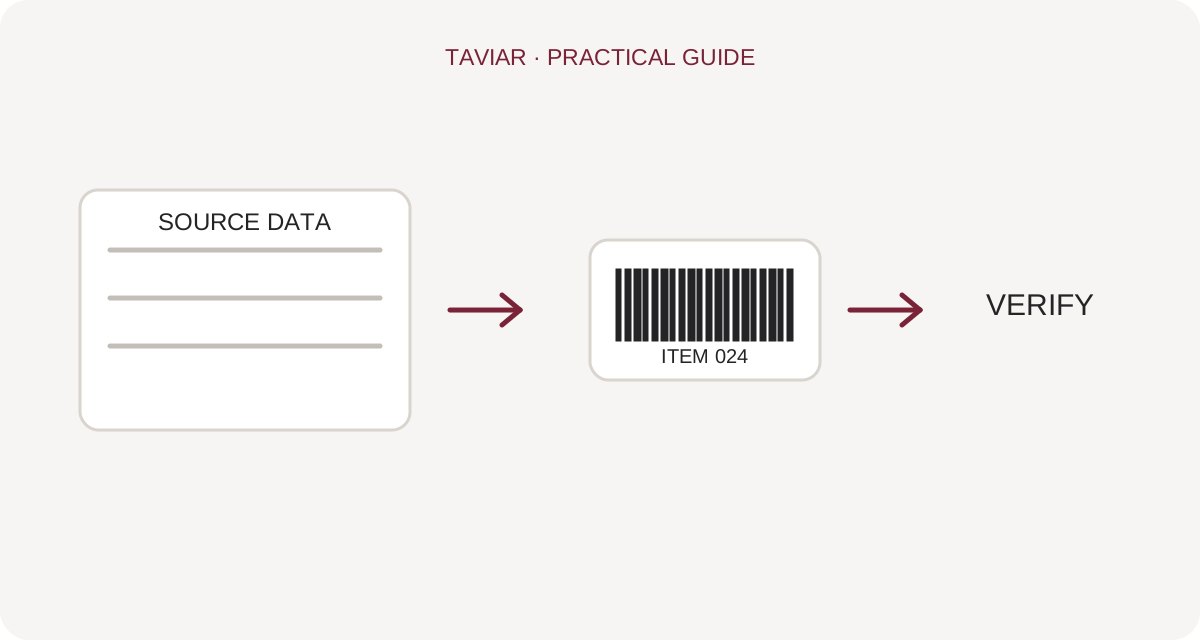
Who is responsible for each label field?
Note which data is retrieved from the system: item number, name, quantity, batch or other existing information. Define who approves content and who is responsible for template changes. Connection to a management system does not guarantee every field is displayed correctly, so testing should include real data rather than just a blank sample label.
To continue checking, see Label design and production software.
Check the file before checking the printer
Separate a generated-data error from a printing fault. If the file already contains missing text or an incorrect barcode, check document generation. If the file is correct but printing is clipped, check dimensions, orientation and driver settings. Priority connectivity depends on the system and permissions; do not assume every model has built-in integration.
To continue checking, see Checking the driver.
What should I prepare for a compatibility check?
Send a sample document without sensitive information, printer model, operating system and a description of the production process. Specify whether you use a local computer, server or remote workspace. Document expected versus actual results so the case can be reproduced.
To continue checking, see Contact support and request compatibility advice.